


STEP 01
Start your workspace.
Sign up with your email, confirm the code, then choose a password. Get 25 welcome credits: 5 creatives at 5 credits each. Verify your email before your first generation.
Less overthinking.
More getting it out of your head.
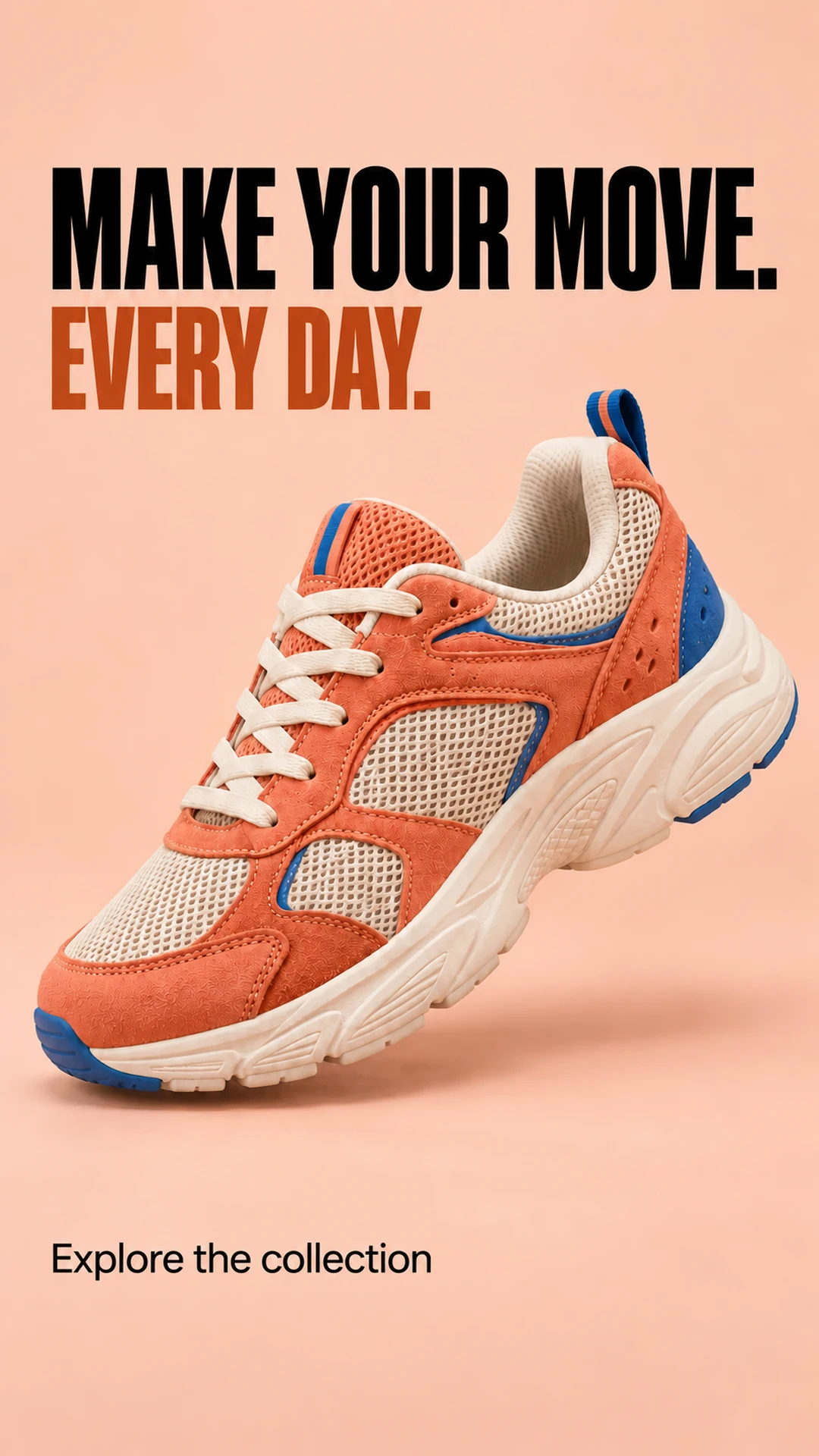
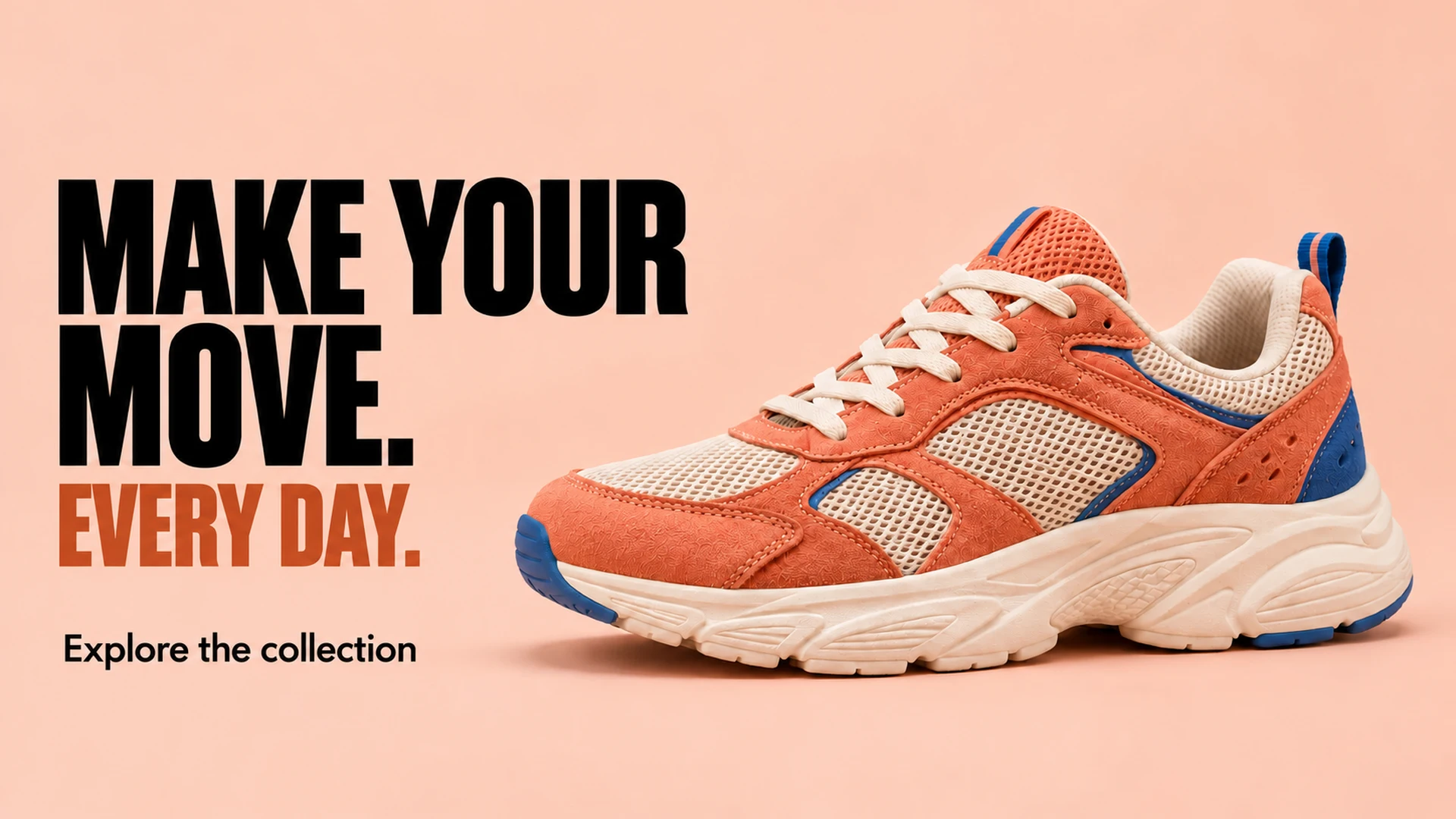
Bring your product, add direction and choose your formats. Every creative gets its own composition. Illustrative example.
Sign up with your email, confirm the code, then choose a password. Get 25 welcome credits: 5 creatives at 5 credits each. Verify your email before your first generation.
Pick product + requirements, product + visual reference, or a campaign based only on your public website page.
Describe the product and attach its photo. For reference mode, add a separate style image. For website mode, paste the URL, read the page and review the extracted facts.
Describe the audience, goal, tone, language and call to action. Add only real product facts and offers. Tell each creative what it should say or show.
Choose Instagram, TikTok, X, LinkedIn or Facebook. Add up to 20 creatives and choose a supported square, portrait, story or landscape format for each.
Review the campaign settings, formats and credit estimate, then generate your campaign. Download each PNG in its selected format and find your results in your account. Successful creatives cost 5 credits each; unused reservations are returned.
Your product stays the hero. The reference supplies style; the website supplies facts. Create your account and follow the six steps above.
Choose a question to see the answer. Ask us if yours isn’t here.
You can read the guides, Riff’s tips and all ten illustrative cases without signing in. The working studio, saved briefs and generated campaigns require an account.
Create an account, confirm the email code and choose a password. New eligible accounts receive 25 welcome credits: 5 images at 5 credits each. Existing accounts do not receive the bonus again.
Link and verify an email in Profile & security before generating. Linking keeps the same account, balance and saved work. Save a private recovery code so you can return to the workspace.
Choose Product + requirements for your own creative direction, Product + visual reference for a style to follow, or Website for a campaign based on facts read from a public page.
Yes. Choose Open this brief in the studio on a case to load its suggested direction and formats after sign-in. Review and edit them for your actual product before generating.
Add up to 5 PNG, JPEG or PDF reference files, up to 20 MB each. Generation uses selected image references. PDF contents are not read or sent; PDFs carry supporting file information only.
My product tells the studio which item to preserve. Style reference supplies visual direction, mood and composition. In reference mode, add separate images and assign their roles.
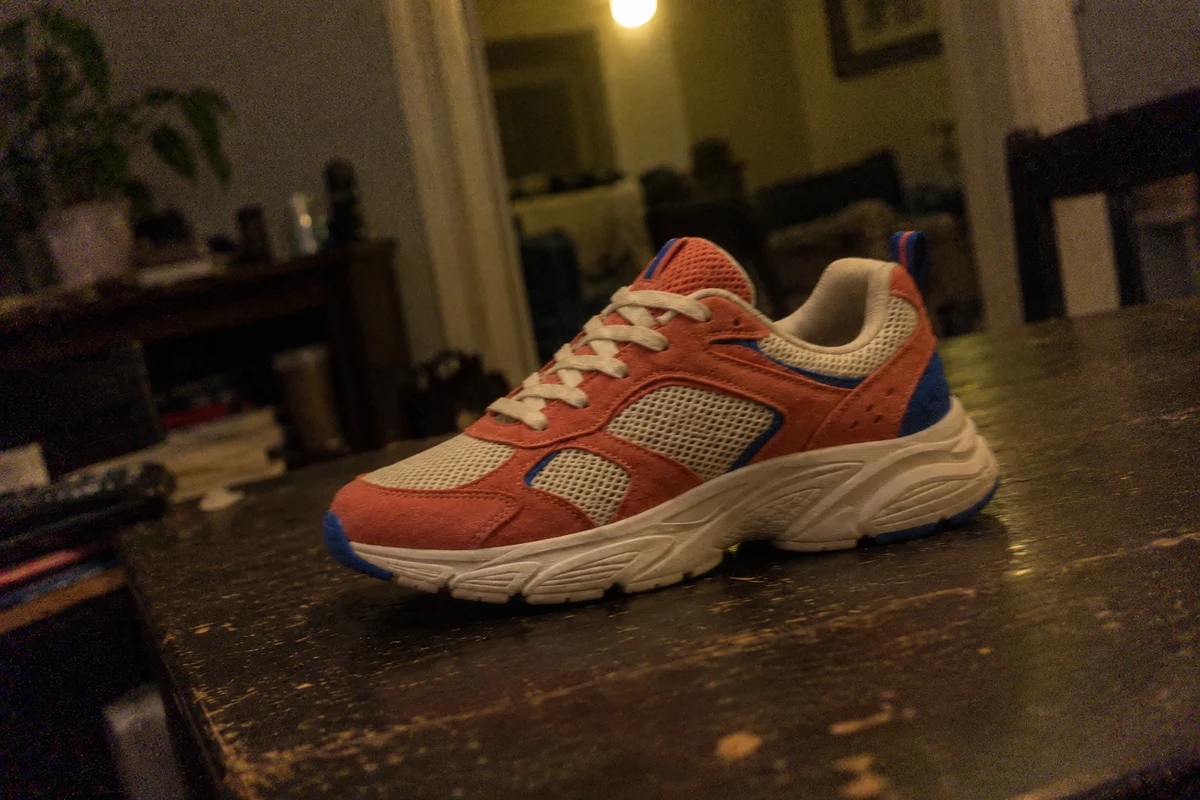
You can use it as a product reference, but a clear, well-lit photo makes its details easier to preserve. The sneaker example illustrates a possible visual direction; it is not a guarantee that every input can be restored.
No. It reads one public page, extracts bounded page facts and asks you to review them. It does not crawl an entire website or access pages behind a login.
They stay on your device while you prepare the brief. When you choose Generate, selected images are resized to a maximum of 1,600 px and 2 MB and sent to the generation service. Temporary server input copies are removed after the job finishes.
Describe the real product, audience, goal, tone, language and call to action. Give each creative a clear scene or message. Add only confirmed product facts and genuine offers.
Choose Instagram, TikTok, X, LinkedIn or Facebook. Supported canvases are square 1:1, portrait 4:5, story 9:16 and landscape 16:9. Each platform shows only its supported ratios.
You can prepare up to 20 creatives in one brief. Each creative has its own platform, format and instruction. One campaign can run at a time per account; availability limits may apply.
No. Preparing validates the brief, selected image roles, source facts and output dimensions. You can edit and prepare again for free before choosing Generate campaign.
Review the actual image and copy, adjust the brief and start another generation for a new variation. A new completed image uses credits again. Preparing an edited brief remains free.
A completed creative costs 5 credits. The estimate is reserved when the job starts; unused reservations for failed images are released. Checking a brief does not spend credits.
Credit purchases are not available yet. The packages and custom amount field are a price calculator; selecting them does not charge you. Generation uses the credits already in your account.
Find saved briefs and campaign history in My briefs. Save your brief explicitly. Download finished PNGs in the selected format and export campaign JSON as a local copy. Use Load more to reach older records.
No. A brief export contains the settings and reference file names, not the original file contents. Select the actual reference images again after importing and review their roles.
No. Download the PNG files and publish them on your own channels. For account access problems or questions about a campaign, contact support without sending passwords or private recovery codes.